Adding Drop Dates | |||
| |||
Add Drop Dates from the Delivery List
This section describes how to add drop dates from delivery lists.
From the global toolbar, click
 > Apparel Administration > Channels.
The Channels page opens.
> Apparel Administration > Channels.
The Channels page opens.
From the Deliveries tab, select the delivery for which a set of drop dates is added, and then click Actions > Add Drop Date from the tab toolbar. The Create Product Delivery Drop Date page opens.
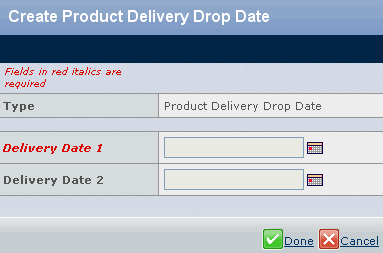
Click
 to specify the Delivery
Date 1 and Delivery Date 2 parameters.
to specify the Delivery
Date 1 and Delivery Date 2 parameters.

Add Drop Dates from the Drop Date List
This section describes how to add drop dates from drop date lists.
From the global toolbar, click
> Apparel Administration > Channels.
The Channels page opens.
Select the delivery for which a set of drop dates is added, and click Actions > Add Drop Date from the tab toolbar. The Create Product Delivery Drop Date page opens.
Click
to specify the Delivery
Date 1 and Delivery Date 2 parameters.