Editing Drop Dates | ||
| ||
From the global toolbar, click
 > Apparel Administration > Channels.
The Channels page opens.
> Apparel Administration > Channels.
The Channels page opens.
From the Drop Date tab toolbar, click Enable Edit to edit the drop date details.
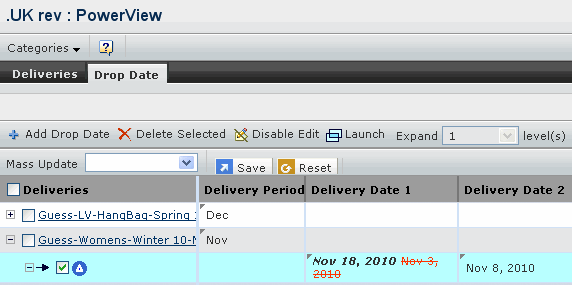
In the delivery record, click Delivery Date 1 or Delivery Date 2, and then click
 to modify the delivery
date.
to modify the delivery
date.
Or
To edit multiple or all the listed deliveries with a common value in the Delivery Date 1 or Delivery Date 2 columns:
-
Select a column, namely Delivery Date 1 or Delivery Date 2, from the
Mass Update drop-down list, and then click to select the delivery
date for the specified column.
-
Select a column, namely Delivery Date 1 or Delivery Date 2, from the
Mass Update drop-down list, and then click