Editing the Fabric Cost | ||
| ||
From the global toolbar, click
 > Library > Fabrics. The Fabrics page opens listing all the available fabrics.
Click Name of a fabric record or click
 at the end of the row.
The fabric Properties page opens.
at the end of the row.
The fabric Properties page opens.
From the page toolbar, click Mode to switch from view mode to edit mode.
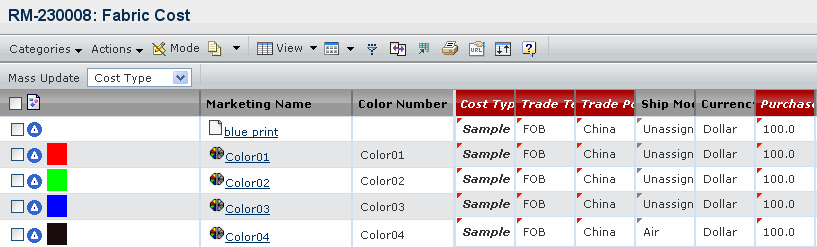
You can modify the following parameters:
Cost Type - Select a cost type from the drop-down list, namely Unassigned, Sample and Bulk.
Trade Terms - Select the trade terms from the drop-down list, namely CIF, FOB, LDP, and DDP.
Trade Point - Select a trade point from the drop-down list.
Ship Mode - Select the ship mode of the fabric/trim from the drop-down list.
Purchase Cost - Enter the purchase cost.
Quote Date - Click
 to select the date when
the quotation was returned to the requestor.
to select the date when
the quotation was returned to the requestor.Effective From - Click
to select the start time
of the period during which the quotations from the supplier are valid.Effective To - Click
to select the date the
quotation expires.Status - Select the cost status from the drop-down list, namely Preliminary and Confirmed. By default, it is Preliminary.
Remarks - Enter additional information of the fabric cost.