Creating a Sourcing and Capacity Calendar | ||
| ||
From the global toolbar, click
 > Administration > Sourcing
& Capacity Calendar. The Sourcing & Capacity Calendar page opens
listing the available calendars in the status specified at the top right
corner of the page.
> Administration > Sourcing
& Capacity Calendar. The Sourcing & Capacity Calendar page opens
listing the available calendars in the status specified at the top right
corner of the page.
From the page toolbar, click Create Calendar Template. The Create Calendar Template page opens.
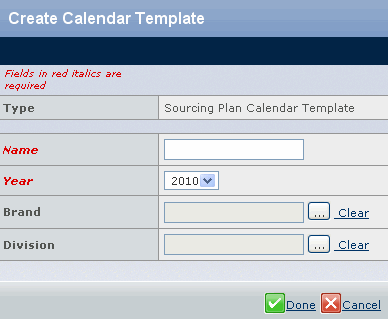
Provide the information in the following fields. Fields in red italics are mandatory.
Name - The name assigned to the calendar.
Year - The calendar year to which the sourcing and capacity calendar is associated.
Brand - Click
 to the left of
the field, the Select screen will open listing all the company Brands.
to the left of
the field, the Select screen will open listing all the company Brands.Select one or more brands and click Submit to return to the Create Calendar Template screen.
Division - Click
to the left of
the field, the Select screen opens listing all the Divisions associated
to the Brand(s) selected.Select one or more divisions and click Submit to return to the Create Calendar Template page.