Creating a Design in ENOVIA

Use Start Design feature to initiate the process of creating a new CATIA V5 Model using templates that are created by your Integration Administrator for each type.

When using Start Design, there are certain precautions you should take to prevent loss of modifications in original files and inconsistent CATIA sessions.

On a default setup, one template for each supported type is available. The Integration Administrator can add or remove templates for each type.


Before you begin:

Ensure that templates exist for the required types

  1. Click ENOVIA V6 > Start Design from CATIA V5.

    The Start Design page opens.
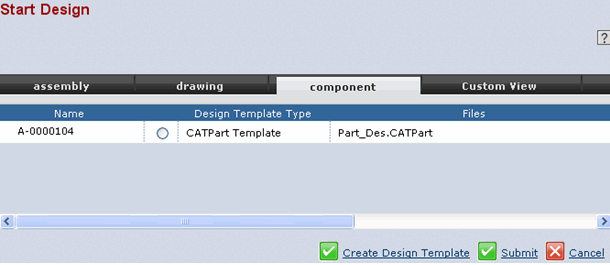
    The available templates are listed using which you can create a CATIA V5 Model.

  2. Select the required template and click Submit.

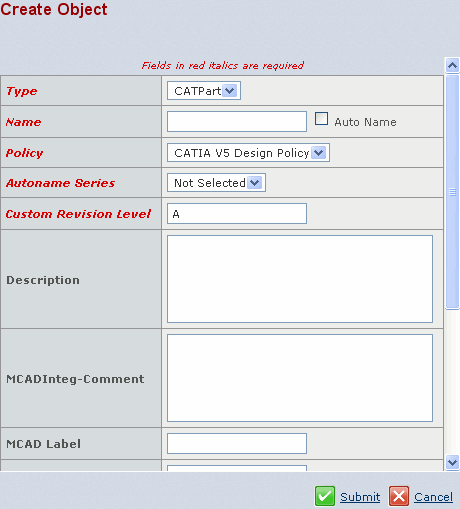
    The Create Object page associated with the selected template object opens.
    Start Design feature does not support creation of new relationships when the parent is not of type CATProduct. New CATProduct > CATIA Embedded Component relationship creation is also not supported.

  3. Specify the values for Type, Name, Policy, Autoname Series, and Custom Revision Level and click Submit.

    The Checkout page opens listing the newly created CATIA V5 document.

  4. Click Checkout to check out the newly created CATIA document.

    For more details on Start Design, see ENOVIA Designer Central User's Guide.