Viewing Properties | |||
| |||
Click ENOVIA > Properties from MicroStation toolbar.
The ENOVIA Properties dialog box opens.
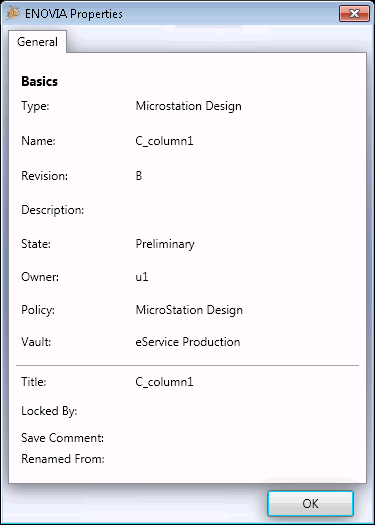
For the design, the ENOVIA Properties dialog box lists the type, name, revision, description, state, owner, policy, and vault. It also lists,
Title. The title entered for the design.
Locked By. User name of the person who has locked the design.
Checkin Comment. Comments entered when the design is saved to ENOVIA.
Renamed From. Last used name of the design if the design has been renamed.