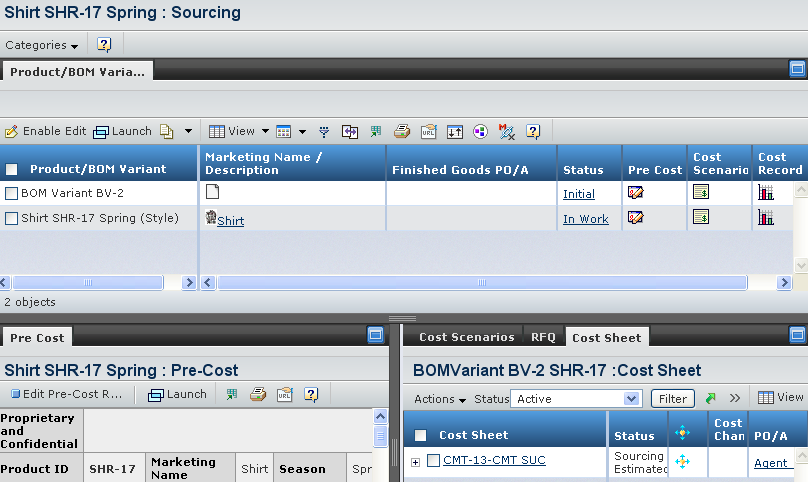
| Product/BOM Variants |
Shows the Product and BOM variants details. |
See Product Sourcing Powerview in the ENOVIA Accelerator for Design and Development User Guide. |
| Pre-Cost Report |
Shows the Product and BOM variants pre-cost report details. |
See Pre-Cost Report in the ENOVIA Accelerator for Design and Development User Guide. |
| Cost Scenarios |
Shows the Product and BOM variants cost scenarios which
can be used to impact and reduce the initial cost estimated from the
pre-cost reportdetails. |
See Cost Scenarios in the ENOVIA Accelerator for Design and Development User Guide. |
| RFQ |
Shows all the available quotation request records of product
supplier. You can create a request for quote (RFQ) for products and submit
it for quotation to selected suppliers; upon email notification, each
of the selected suppliers completes cost details for each product including
fabric material costs, cut/make/trim (CMT) costs, shipping and import
costs, and miscellaneous costs; then returns the quotation. You can accept
the quotation and create one or more supplier unit costs (SUCs) for each
returned quotation, or reject the quotation. |
See Listing RFQs from a Product. |
| Cost Sheet |
Shows all the available supplier unit cost sheets
and landed unit cost sheets related to the product/BOM variant. |
|
 > Library > Products . The Products page opens listing all the available products.
 at the end of the row.
The Properties page for the selected product opens.
at the end of the row.
The Properties page for the selected product opens.