From the global toolbar, click  > Library > Fabrics. The Fabrics page opens listing all the available fabrics.
Click Name of a fabric or click  at the end of the row.
The fabric Properties page opens.
at the end of the row.
The fabric Properties page opens.
From the page toolbar, click Categories > Approved Colors. The PowerView
page opens.
Select Sourcing and Costing option from the right corner drop-down list.
The Approved Colors tab displays the following details of the approved
color or print:
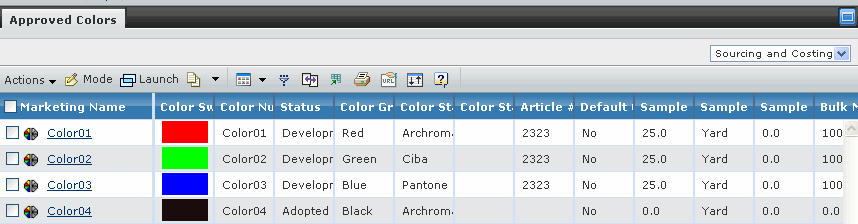
Article # - Indicates the article number of the color or print.
Default Cost Color - Indicates whether the color or print is used
for the default fabric cost.
Sample Minimums by Color - Indicates the minimum amount of material
of the specific color or print that must be shipped.
Sample Minimums by Color UOM - Indicates unit of measurement applied
to Sample Minimums by Color.
Sample Lead Time - Indicates the lead time for the fabric samples
to be produced and delivered from the factory to the production office/agent.
Bulk Minimums by Color - Indicates the bulk order minimum request
of fabric samples for each color or print.
Bulk Minimums by Color UOM - Indicates the unit of measurement applied
to Bulk Minimums by Color.
Bulk Lead Time - Indicates the lead time for fabric bulk production.
Production Dying Lead Time - Indicates the lead time for the fabric
dying process.
For a description of the other parameters, see Listing Colors in the
ENOVIA Apparel Accelerator for Design and Development User Guide.
Use the Approved Colors tab Actions menu or toolbar to access the following options:
Create Print - Allows you to create a print for the fabric.
Create Wash - Allows you to create a wash for the fabric.
Add Existing Colors/Prints- Allows you to add existing colors or
print to the fabric as its approved colors or prints.
Add Existing Washes - Allows you to add existing washes to the
fabric as its approved washes.
Set Default Cost Color - Allows you to set the selected color as
the default cost color.
Remove Selected - Allows you to delete the selected approved color
of the fabric.
Mode - Allows you to switch between view mode and edit mode. In the edit
mode, you can edit the fabric color details. See Editing Fabric Color
Information.
Click the Marketing Name of the approved color or print, the Fabric
Cost tab displays the cost details for the selected approved color or
print. For a description of the parameters, see Viewing the Fabric Cost.
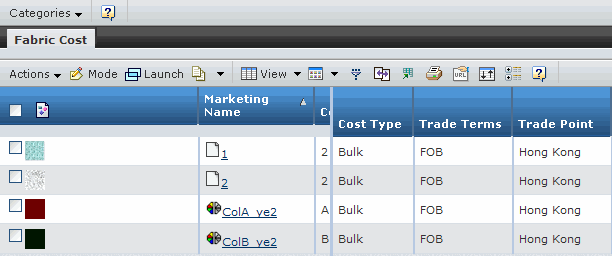
Use the Fabric Cost tab actions menu to access the following options:
Add Cost Details for Colors - Opens the Select Approved Colors to Fabric Cost page
where you can select approved colors to the fabric cost.
Add Cost Details for Prints - Opens the Select Approved Prints to Fabric Cost page
where you can select approved colors to the fabric cost.
Copy Cost (To Same Color) - Allows you to copy all cost details to
a new line with same color information. For Prints record, this option
should be Copy Cost (To Same Print).
Copy Cost (To New Color) - Opens the Select Approved Colors to Copy
Cost page and allows you to copy all cost details to a new line with
selected color information. For Prints record, this option should be
Copy Cost (To New Print).
Remove - Allows you to remove the selected fabric cost records.
Mode - Allows you to switch between the view mode and the edit mode. In
the edit mode, you can modify fabric cost details. See Editing the Fabric
Cost.