Click the needed folder Name.
From the page toolbar, click Categories > Access.
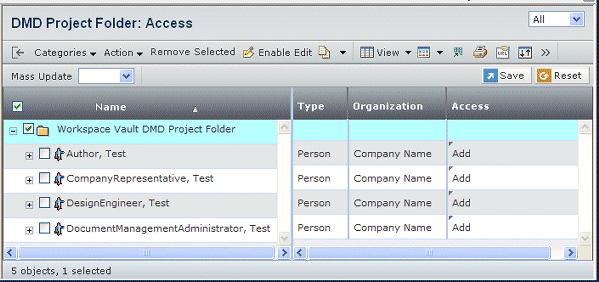
See Folder Accesses List for descriptions of the columns.
To filter the list, select an option from the pull-down list at the
top, right:
To change the access level for any person, role, or group:
-
Click Enable Edit on the page toolbar.
-
Select an Access for the person, role or group.
-
Click Save.
-
Click Disable Edit. If you did not click Save
first, your changes are not saved.
To change the access level for multiple persons, roles, or groups:
-
Click Enable Edit on the page toolbar.
-
If not changing the access for ALL listed names, check the names you
want to change.
-
In the Mass Update toolbar, select Access
from the drop-down list.
-
Select the type of access from the drop-down list.
-
To apply the change, click one of these:
- Apply to Selected. Only updates those names that
are checked.
- Apply to All. Updates the access for all names
whether or not checked.
-
Click Save.
-
Click Disable Edit. If you did not click Save
first, your changes are not saved.
To add access to a person, role or group:
-
Click Enable Edit on the page toolbar.
-
From the page toolbar, select Action > and
the user type you want to add:
- Add Person
- Add Role
- Add Group
Added people, roles, and groups show in green.
-
Click Save.
-
Click Disable Edit. If you did not click Save
first, your changes are not saved.
To remove a person, role or group from having access to this folder:
-
Click Enable Edit on the page toolbar.
-
Check the person, role, or group.
-
Click Remove Selected in the page toolbar.
-
Click Save.
-
Click Disable Edit. If you did not click Save
first, your changes are not saved.
|