Working with Gate Deliverables | |||
| |||
In the WBS for a project, click the name of the gate.
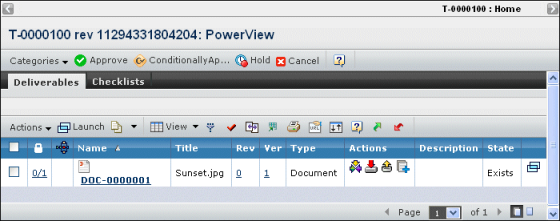
The Deliverables tab displays the following columns:
 Lists the number of files checked in to this deliverable. Click the number to view the file information.
 If this icon shows in a row, the document is included in an active route. See Working with Routes.
Name. The name of the deliverable. Click the name to see the file information for the deliverable.
Title. The title of the deliverable. For documents, this is the title text if entered during creation; otherwise, this displays the default document object name.
Rev. The revision number of the deliverable.
Ver. For document objects only, this is the total version number for a single file. For multiple files, click the version icon to view the file versions.
Type. The type of deliverable, for example, Document.
Actions. Select one of the following actions on a deliverable:
Icon
Name
Action

Subscribe
View and select subscriptions for a deliverable. See Working with Subscriptions.

Download
Download one or more files to your local machine. Browse to the directory or folder you want to contain the file. Multiple files are downloaded in a single zip file.

Check Out and Lock
Check out one or more files to your local machine and lock the files from other users who cannot unlock it. Navigate to the folder or directory you want to contain the file.

Add New Files
Add new files to a deliverable.
Description. The description of the deliverable.
State. The current lifecycle state of the deliverable.
 . Shows properties and files for the deliverable in a separate window.